Minimise alerts
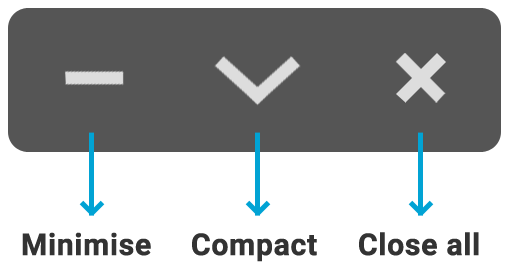
You can minimise the alerts to keep it active without closing and avoid blocking your view.
- Click on the minimise icon
- Screenshot:

Compact mode
You can change the alerts display to compact mode to keep it active but low and occupy lesser view space.
- Click on the compact mode icon
- Screenshot:
Close all alerts
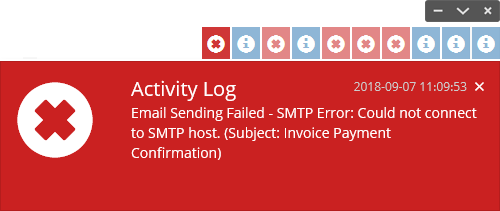
You can close the current set of alerts showing on screen. Once closed, the next set of alerts will be loaded, if there are any.
Dismiss all alerts
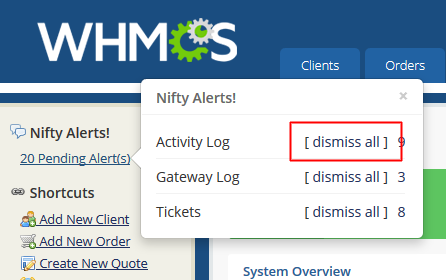
You can dismiss all the alerts together. Once dismissed, the dismissed alerts won't be shown again.
- Move the mouse over 'X Pending Alerts' from sidebar or from top stats area
- Click on 'dismiss all' of the alert category you wish to dismiss
- Screenshot: