
In order to add an email account to your mobile iOS device you will need to go through the following steps:
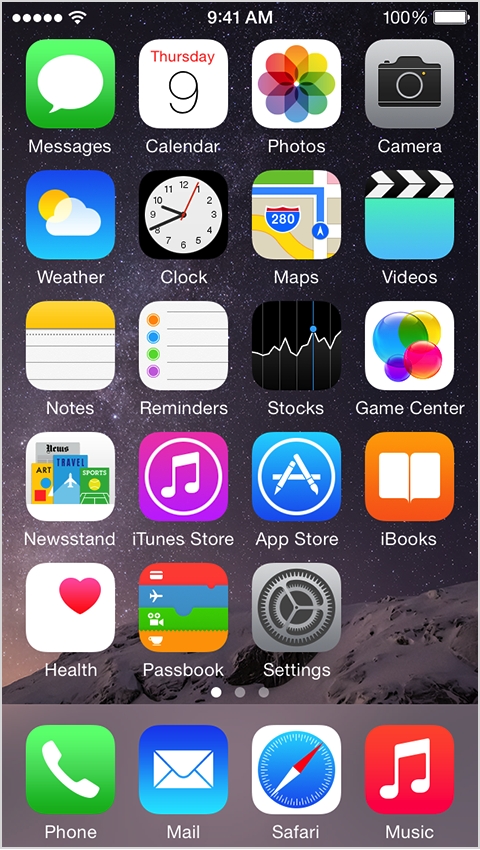
1. Tap Settings
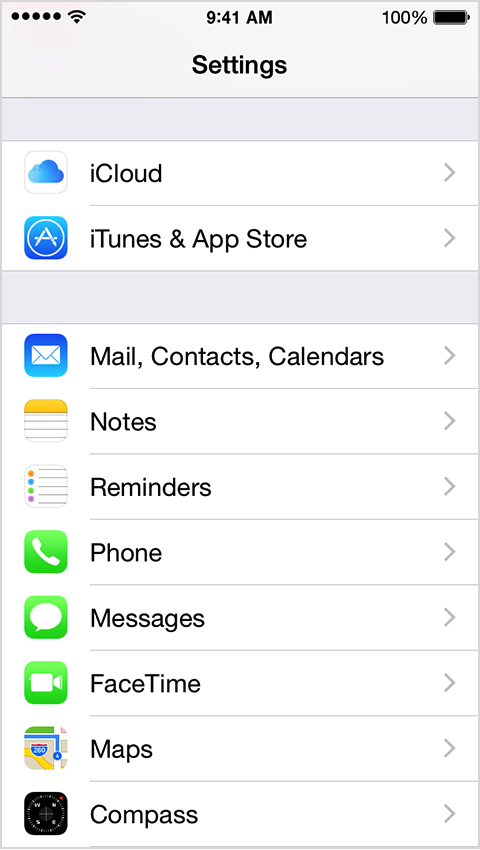
2. Scroll down and tap Mail, Contacts, Calendars.
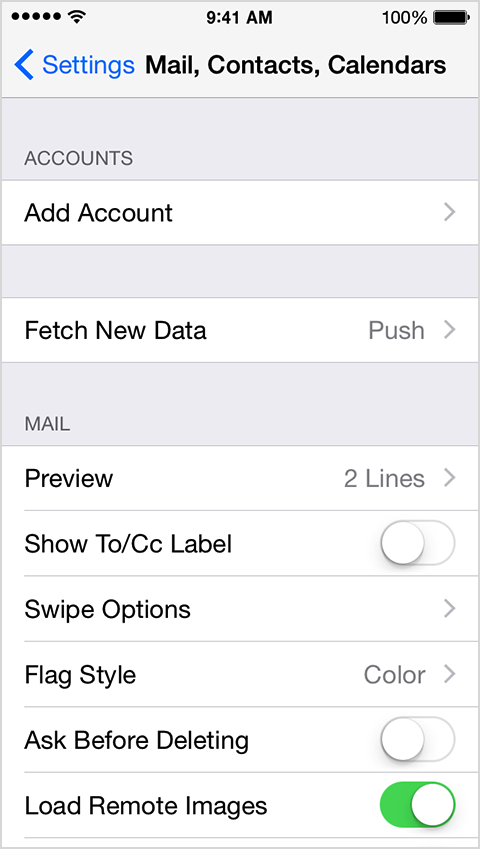
3. Tap Add Account.
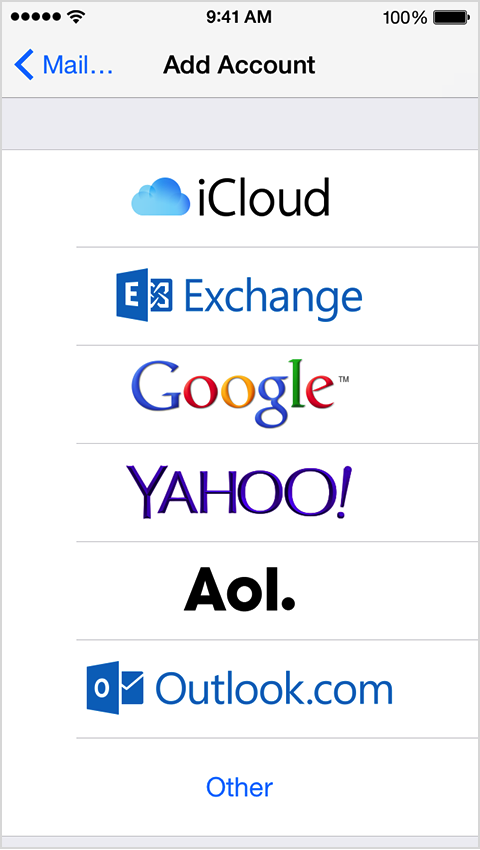
4. Select "Other" for the email account provider:
5. Use the following settings
Username: Full email address (i.e. example@example.co.uk)
Password: The corresponding password for the email account
Incoming mail server settings:
Server: imap.portdns.com
Protocol: IMAP
Port: 993
Outgoing server supports SSL: Yes
Outgoing mail server settings:
Server: smtp.portdns.com
Protocol: SMTP
Port: 465
Outgoing server supports SSL: Yes
Note: The device will say that the Username and Password for the outgoing mail server are optional, however you will need to set them in order for the email account to function properly.
Once you've done that, click 'Advanced'
Set the IMAP Path Prefix to INBOX
Save that, and your iPhone is now set up to use your cloud hosting email account.
